Title here
Summary here
Previously, in the /etc/hosts file, the names referring to the LDAP controller must be added:
127.0.0.1 ldapserver.inaki.local ldapserver

### Network IP
192.168.100.10 ldapserver.inaki.local ldapserver
The required tools are then installed:
sudo apt install ldap-utils slapdIn the pop-up window, it is not necessary to enter the real values, as they will be configured later.
Now, to configure the basic parameters:
sudo dpkg-reconfigure slapd| Parameter | Value |
|---|---|
| DNS name | inaki.local |
| Entity name | inaki |
| Password | {SecurePassword} |
Finally, a directory is created for the configuration files.
mkdir ~/inaki.local && cd ~/inaki.local
touch unidades_organizativas.ldif usuarios.ldif modificar_alumno.ldifOnce it has been confirmed that the service is running:
sudo systemctl status slapdThe next natural step is to create organizational units and users.
The previously created unidades_organizativas.ldif file is edited. The following is added:
dn: ou=profesores,dc=inaki,dc=local
objectClass: organizationalUnit
ou: profesores

dn: ou=alumnos,dc=inaki,dc=local
objectClass: organizationalUnit
ou: alumnos
To add these OUs:
ldapadd -x -D "cn=admin,dc=inaki,dc=local" -W -f unidades_organizativas.ldifThe previously created usuarios.ldif file is edited. The following is added:
# Teacher user
dn: uid=profe1,ou=profesores,dc=inaki,dc=local
objectClass: inetOrgPerson
objectClass: posixAccount
objectClass: top
cn: Profesor Uno
sn: Uno
uid: profe1
uidNumber: 1001
gidNumber: 100
homeDirectory: /home/profe1
loginShell: /bin/bash
userPassword: {SSHA}p/yZC4OW1/rJDesDbG9Jm8py7iJXsfv8

# Student user 1
dn: uid=alumno1,ou=alumnos,dc=inaki,dc=local
objectClass: inetOrgPerson
objectClass: posixAccount
objectClass: top
cn: Alumno Uno
sn: Uno
uid: alumno1
uidNumber: 2001
gidNumber: 200
homeDirectory: /home/alumno1
loginShell: /bin/bash
userPassword: {SSHA}p/yZC4OW1/rJDesDbG9Jm8py7iJXsfv8

# Student user 2
dn: uid=alumno2,ou=alumnos,dc=inaki,dc=local
objectClass: inetOrgPerson
objectClass: posixAccount
objectClass: top
cn: Alumno Dos
sn: Dos
uid: alumno2
uidNumber: 2002
gidNumber: 200
homeDirectory: /home/alumno2
loginShell: /bin/bash
userPassword: {SSHA}p/yZC4OW1/rJDesDbG9Jm8py7iJXsfv8
The users from the file are added as follows:
ldapadd -x -D "cn=admin,dc=inaki,dc=local" -W -f usuarios.ldifUsing the ldapsearch tool, searches can be performed by filtering by dn.
ldapsearch -x -LLL -b "dc=inaki,dc=local" "(objectClass=inetOrgPerson)" dnUsing the ldapsearch tool, searches can also be performed by filtering by uid.
ldapsearch -x -LLL -b "ou=alumnos,dc=inaki,dc=local" "(objectClass=inetOrgPerson)" uidldapmodifyFirst, the modificar_alumno.ldif file is edited and the following is added:
dn: uid=alumno1,ou=alumnos,dc=inaki,dc=local
changetype: modify
replace: sn
sn: Patata
-
add: telephoneNumber
telephoneNumber: 123456789
Once finished, the following command is executed to apply the changes:
ldapmodify -x -D "cn=admin,dc=inaki,dc=local" -W -f modificar_alumno.ldifldapdeleteTo delete a user from the domain, for example alumno2, it can be done as follows:
ldapdelete -x -D "cn=admin,dc=inaki,dc=local" -W "uid=alumno2,ou=alumnos,dc=inaki,dc=local"In LDAP, each objectClass defines a set of mandatory attributes (MUST) and optional attributes (MAY).
Here is a list with some of them:
| objectClass | MUST | MAY |
|---|---|---|
| organizationalUnit | ou | description,seeAlso |
| inetOrgPerson | cn,sn | uid,mail,telephoneNumber,title |
| posixAccount | uid,uidNumber,gidNumer, homeDirectory, loginShell | gecos,description,shadowLastChange |
| organizationalRole | cn | description,roleOccupant,seeAlso |
To modify an attribute of, for example, alumno1, I will add two new attributes that it does not have, but first I create a file in the domain directory:
touch alumno1_modify.ldifInside the file, I specify two new attributes to add to that user:
dn: uid=alumno1,ou=alumnos,dc=inaki,dc=local
changetype: modify
add: mail
mail: alumno1@plaiaundi.eus
-
add: title
title: alumno
To apply the changes to the alumno1 user:
ldapmodify -x -D "cn=admin,dc=inaki,dc=local" -W -f alumno1_modify.ldifOn this occasion, I will create two new users: one teacher and one student.
To do this, I will copy the template used in this section:
cp usuarios.ldif n_usuarios.ldifThen I adapt it so that it can be used to create users named profe2 and alumno3.
Do not forget to change the
uidNumberof the new users so that they do not overwrite other users.
Finally, to add the users:
ldapadd -x -D "cn=admin,dc=inaki,dc=local" -W -f n_usuarios.ldifUsing the ldapsearch tool, queries can be made to retrieve information from different objects inside the LDAP directory.
For example, to filter by uid and return only the one belonging to alumno1:
$ldapsearch -x -b "ou=alumnos,dc=inaki,dc=local" -s sub "(uid=alumno1)" uid
# extended LDIF
#
# LDAPv3
# base <ou=alumnos,dc=inaki,dc=local> with scope subtree
# filter: (uid=alumno1)
# requesting: uid
#

# alumno1, alumnos, inaki.local
dn: uid=alumno1,ou=alumnos,dc=inaki,dc=local
uid: alumno1

# search result
search: 2
result: 0 Success

# numResponses:
To obtain the uid of alumnos:
$ldapsearch -x -b "ou=alumnos,dc=inaki,dc=local" -s sub "(objectClass=*)" uid
# extended LDIF
#
# LDAPv3
# base <ou=alumnos,dc=inaki,dc=local> with scope subtree
# filter: (objectClass=*)
# requesting: uid
#

# alumnos, inaki.local
dn: ou=alumnos,dc=inaki,dc=local

# alumno1, alumnos, inaki.local
dn: uid=alumno1,ou=alumnos,dc=inaki,dc=local
uid: alumno1

# alumno3, alumnos, inaki.local
dn: uid=alumno3,ou=alumnos,dc=inaki,dc=local
uid: alumno3

# search result
search: 2
result: 0 Success

# numResponses: 4
# numEntries: 3RDNThe RDN, Relative Distinguished Name, is the component of a Distinguished Name DN that uniquely identifies an entry within its immediate level in the LDAP tree.
In the case of, for example, alumno1, the RDN is uid=alumno1, as shown in the queries section.
RDNIf the value of the RDN attribute needs to be modified, a file named modificar_valor_rdn.ldif is created, and inside it:
dn: uid=alumno1,ou=alumnos,dc=inaki,dc=local
changetype: modrdn
newrdn: uid=alumno11
deleteoldrdn: 1
To apply the changes:
ldapmodify -x -D "cn=admin,dc=inaki,dc=local" -W -f modificar_valor_rdn.ldifIf the output for the uid of alumno1 is checked, it can be seen that there are no matches:
$ ldapsearch -x -b "ou=alumnos,dc=inaki,dc=local" -s sub "(uid=alumno1)" uid
# extended LDIF
#
# LDAPv3
# base <ou=alumnos,dc=inaki,dc=local> with scope subtree
# filter: (uid=alumno1)
# requesting: uid
#

# search result
search: 2
result: 0 Success
But there is a match with the new uid:
$ ldapsearch -x -b "ou=alumnos,dc=inaki,dc=local" -s sub "(uid=alumno11)" uid
# extended LDIF
#
# LDAPv3
# base <ou=alumnos,dc=inaki,dc=local> with scope subtree
# filter: (uid=alumno11)
# requesting: uid
#

# alumno11, alumnos, inaki.local
dn: uid=alumno11,ou=alumnos,dc=inaki,dc=local
uid: alumno11

# search result
search: 2
result: 0 Success

# numResponses: 2
# numEntries: 1RDNIf the attribute used as the RDN needs to be modified, a file named modificar_atributo_rdn.ldif is created, and inside it:
dn: uid=alumno11,ou=alumnos,dc=inaki,dc=local
changetype: modrdn
newrdn: cn=Alumno Uno
deleteoldrdn: 1
To apply the changes:
$ldapmodify -x -D "cn=admin,dc=inaki,dc=local" -W -f modificar_atributo_rdn.ldif
modifying rdn of entry "uid=alumno11,ou=alumnos,dc=inaki,dc=local"
ldap_rename: Object class violation (65)
        additional info: object class 'posixAccount' requires attribute 'uid'
This cannot be done because, as shown in the attributes section for the posixAccount class, the uid attribute is mandatory.
By creating the mover_a_profesores.ldif file:
dn: uid=alumno11,ou=alumnos,dc=inaki,dc=local
changetype: modrdn
newrdn: uid=alumno11
deleteoldrdn: 0
newsuperior: ou=profesores,dc=inaki,dc=local
The changes are applied:
ldapmodify -x -D "cn=admin,dc=inaki,dc=local" -W -f mover_a_profesores.ldifIn order to authenticate from a client, both machines must be able to communicate with each other.
In this case, both machines are on the same network, 192.168.100.0/24, with 192.168.100.10 being the LDAP server IP and 192.168.100.20 being the client IP.
Additionally, several utilities must be installed on the client in order to authenticate either through the console or through the graphical interface:
sudo apt install libnss-ldap libpam-ldap ldap-utils nscdThe installer will ask for the LDAP server information. In my case, I connect to the server through ldap://192.168.100.10, with dc=inaki,dc=local as the DC and cn=admin,dc=inaki,dc=local as the administrator user.
The following packages are also required:
sudo apt install sssd sssd-tools libpam-sss libnss-sssFinally, it is necessary to create or edit the /etc/sssd/sssd.conf file:
[sssd]
domains = inaki.local
config_file_version = 2
services = nss, pam

[domain/inaki.local]
id_provider = ldap
auth_provider = ldap
ldap_uri = ldap://192.168.1.10
ldap_search_base = dc=inaki,dc=local
ldap_default_bind_dn = cn=admin,dc=inaki,dc=local
ldap_default_authtok = 123
enumerate = true
The correct permissions are granted and the changes are applied by restarting the sssd service:
sudo chmod 600 /etc/sssd/sssd.conf
sudo systemctl restart sssd
To check that the user exists and that there is communication with the LDAP server, from the client:
$ ldapsearch -x -LLL -H ldap://192.168.100.10 -b "dc=inaki,dc=local" "(uid=profe1)"
dn: uid=profe1,ou=profesores,dc=inaki,dc=local
objectClass: inetOrgPerson
objectClass: posixAccount
objectClass: top
cn: Profesor Uno
sn: Uno
uid: profe1
uidNumber: 1001
gidNumber: 100
homeDirectory: /home/profe1
loginShell: /bin/bashAfter following the steps, to log in through the console with the profe1 user:
$ su - profe1
Mot de passe :
su: avertissement : impossible de changer le répertoire vers /home/profe1: Aucun fichier ou dossier de ce nom
$ whoami
profe1
To remove the message su: avertissement : impossible de changer le répertoire vers /home/profe1: Aucun fichier ou dossier de ce nom, the system must be configured to create a default home directory for users:
sudo pam-auth-update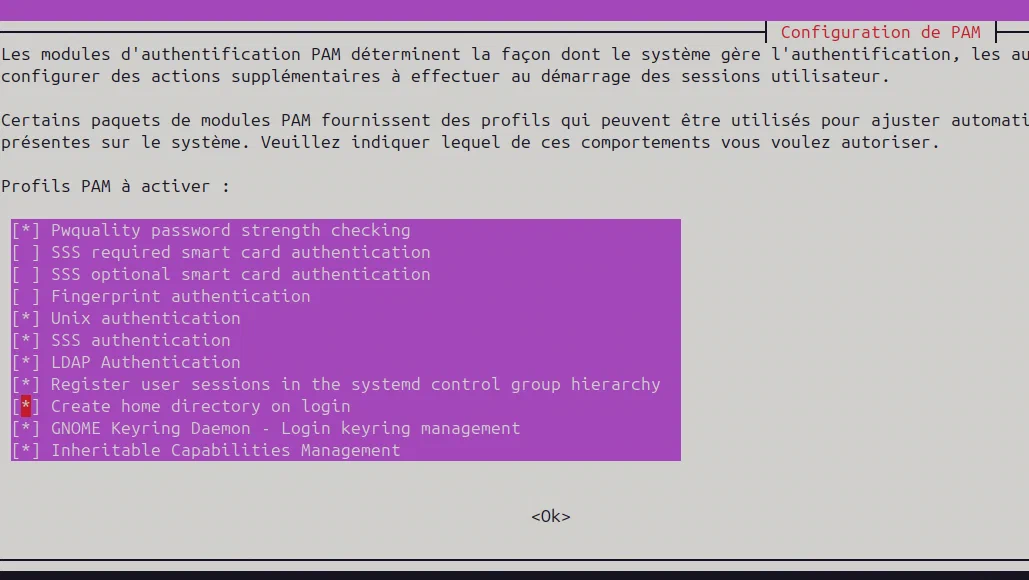
If the profe1 user authenticates again:
$ su - profe1
Mot de passe :
Création du répertoire « /home/profe1 To access through the graphical interface with, for example, the profe2 user created here, simply log out from the current user and enter that user’s credentials:
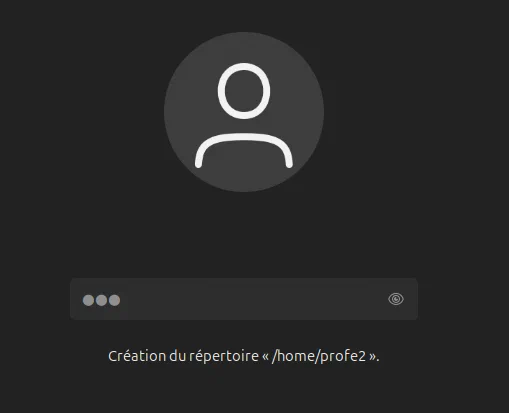
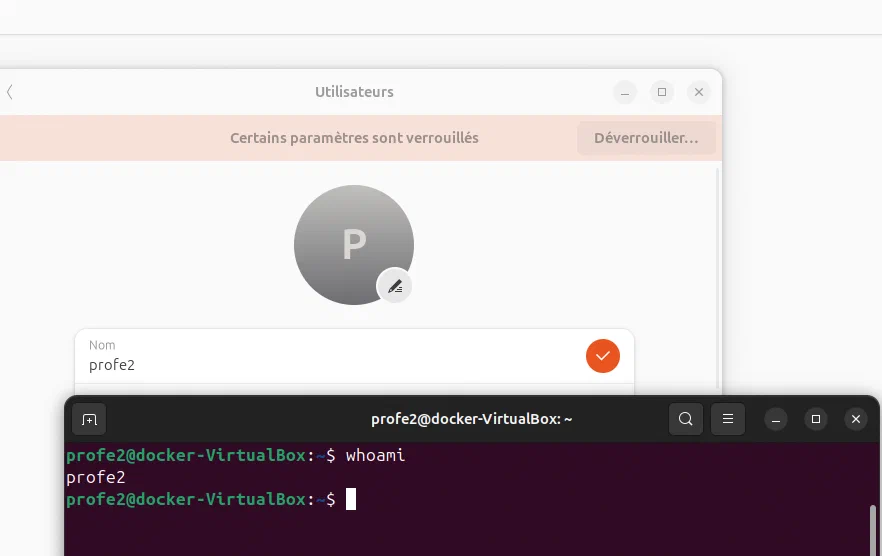
And the check from inside the session: